Mac workflow
Mac mini Has No Microphone: Voice Input Options for Siri, Dictation, and Voice Memos
October 25, 2026 · 6 min read · By Forthright Tech
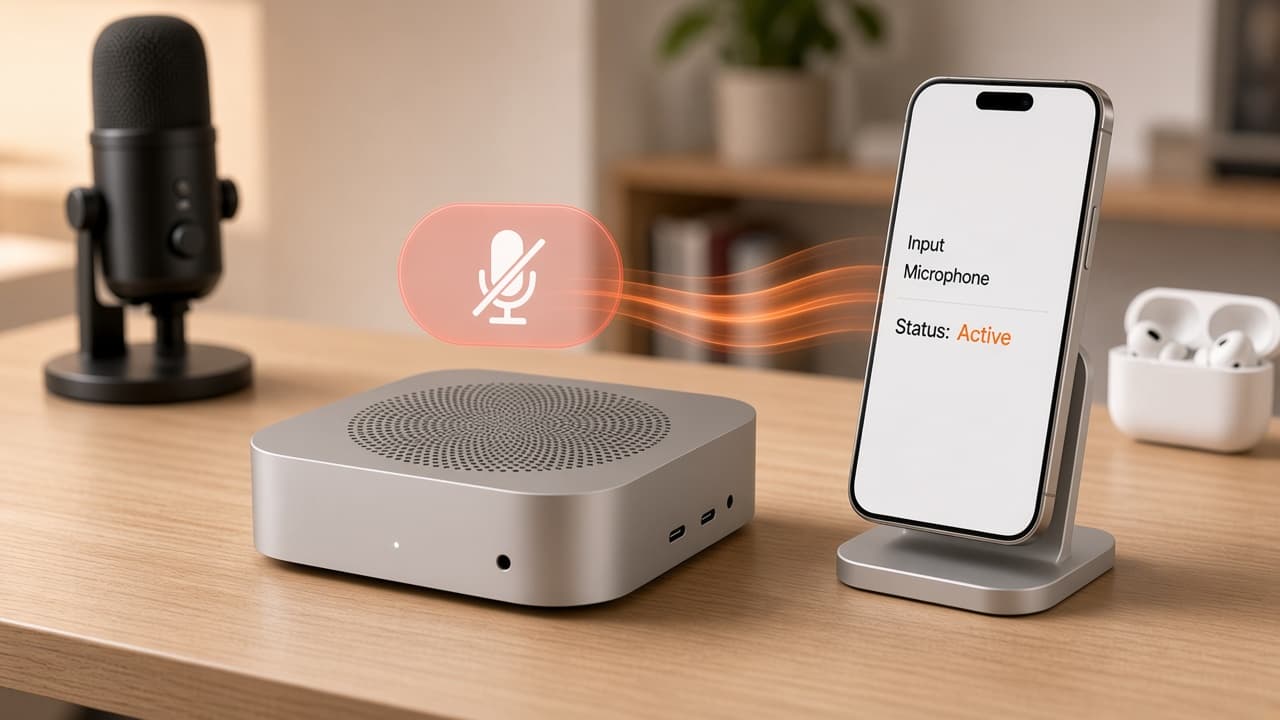
The Mac mini has no built-in microphone. Compare Studio Display, USB microphones, and AirPods for Siri, Dictation, and Voice Memos, then set up iMic with your iPhone.
The Mac mini is a capable desktop Mac, but it does not have a built-in microphone. That can be surprising when you sit down to ask Siri something, dictate a note, or record a quick idea in Voice Memos. Apple’s Mac mini Siri guide says you need an external microphone for voice requests, and notes that a connected Studio Display can provide one.
You still have several ways to speak to your Mac. The right choice depends on whether you want a desk microphone, a headset you already own, or a phone-based setup that can move with you.
First, separate voice input from Siri access
A microphone lets an app receive your voice; it does not mean you must use a wake phrase. You can open Siri from its menu bar or keyboard control and type a request. For spoken requests, the Mac needs an available microphone. Dictation and Voice Memos also need an input source to capture your speech.
A question in the Apple Support Community discussion about the Mac mini’s lack of a microphone reflects a common point of confusion: the Mac mini itself cannot listen through a built-in mic because it has none. Apple’s guide describes using a connected Studio Display or an external microphone. Availability of voice activation can also depend on your Mac, language, region, and settings, so check Siri settings on your own system.
Option 1: Apple Studio Display
If you already use an Apple Studio Display, its built-in microphone can serve as the Mac’s voice input when the display is connected. It keeps the desk setup simple: no separate mic to plug in or position. Apple’s Siri troubleshooting guide advises making sure the Studio Display is connected when using Siri.
The display is an expensive way to add a microphone if you do not otherwise need that monitor. If you already own one, check the selected input in System Settings → Sound → Input and make a short test recording before relying on it.
Option 2: USB microphone
A USB microphone is a direct choice for a fixed desk. Connect a compatible USB mic, select it under System Settings → Sound → Input, and check that the input level responds when you speak. Apple’s guidance for external microphones is to confirm that the device is connected, selected in Sound settings, and has enough input volume.
This can cover Siri voice requests, Dictation, Voice Memos, and other apps that use the Mac’s audio input. The exact connection may depend on the microphone and your Mac’s available ports; check the mic’s connector and compatibility before buying. A small USB mic is often enough for notes and everyday dictation, while a larger recording microphone may take more space than your workflow needs.
Option 3: AirPods
AirPods can be convenient if you already wear them. Connect them to the Mac and select their microphone as the input when you want to dictate or record. They keep the mic close to you and can work well for a quick note or a call without adding a desk device.
Bluetooth audio can behave differently across apps and environments, so test your actual AirPods and Mac rather than assuming the result. Record a short sample in Voice Memos and try a paragraph in your dictation app. If audio sounds wrong, check the selected input and reconnect the AirPods. For more on comparing Mac dictation inputs, see our guide to microphones for Mac dictation.
Option 4: Use your iPhone with iMic
If you want to speak while away from the desk, iMic lets your iPhone act as a microphone input for your Mac. Install iMic on both devices, connect them over the supported local connection, and choose iMic as the Mac’s input in System Settings → Sound → Input. Then use that input in Dictation, Voice Memos, or another app that accepts the system microphone.
This approach uses a device you may already carry, so you can move around instead of staying close to a desk mic. It does require iMic on both devices and a local connection. Read how iMic works, visit the iMic homepage, or check download and waitlist options.
Which setup should you choose?
- Already have a Studio Display? Try its microphone first.
- Mostly work at one desk? A compatible USB microphone gives you a dedicated input.
- Already wear AirPods? Test them before buying anything else.
- Want to dictate while moving? Try your iPhone as the Mac input with iMic.
After connecting any microphone, select it in Sound settings and test it in the app you plan to use. That small check confirms both that macOS sees the device and that your chosen app is listening to the expected input. For more hands-free Mac workflows, see how to use your iPhone and Mac together.
Ready to try iMic?
Turn your iPhone into your Mac’s microphone and shortcut remote. $5.99/year with a 7-day free trial, or $9.99 for a lifetime license on two Macs.
Get iMic