Use case
Voice vibe coding in an open office: whisper, hold-to-talk, or wait until you're home
October 26, 2026 · 5 min read · By Forthright Tech

Voice vibe coding can make long prompts faster at home, but open offices add awkwardness, privacy concerns, and noise for coworkers. Use hold-to-talk for short public bursts and type sensitive details.
Voice vibe coding is often faster at home, where you can speak a full thought without worrying who can hear it. In an open office or café, use short hold-to-talk bursts for ordinary prompts and type private details such as credentials, IDs, and sensitive URLs. A phone held close to your mouth can help you speak more quietly, though people nearby may still hear you.
Why voice coding stalls in an open office
At home, a long prompt to Claude or Cursor can feel like thinking aloud. In a shared room, that same rambling narration can feel awkward—and coworkers may find a steady stream of speech distracting. A café brings the same social friction, with the added chance that strangers can hear details you did not mean to share.
Privacy deserves a separate check. Don't say credentials, private bug details, customer information, or identifying URLs out loud where others can hear. If you would not want someone at the next desk to overhear it, keep it typed and review the prompt before sending.

What to say out loud, and what to keep typed
Save long, exploratory prompts for home or a closed room. When you have privacy, speaking a complete explanation can be a quick way to capture context, constraints, and the outcome you want from an AI coding assistant.
In public, keep voice prompts short and generic: “Explain this function,” “Suggest a simpler name,” or “Add a test for the empty state.” Type secrets, account identifiers, customer data, internal URLs, and sensitive bug details. The split workflow keeps the speed of voice vibe coding without turning the office into an audience for your work.
Short bursts beat a speech
A short push-to-talk burst fits shared spaces better than leaving dictation open while you think. Hold the button, say one request, let go, then read the recognized text before sending it. If it contains something private or someone walks nearby, cancel and type instead.
With iMic, you can use an iPhone as a virtual microphone for your Mac and configure shortcut buttons that send keypresses over local Wi-Fi. The hold action can trigger a push-to-talk shortcut; iMic itself does not transcribe speech. Dictation or transcription is handled by the app or operating-system feature you choose.
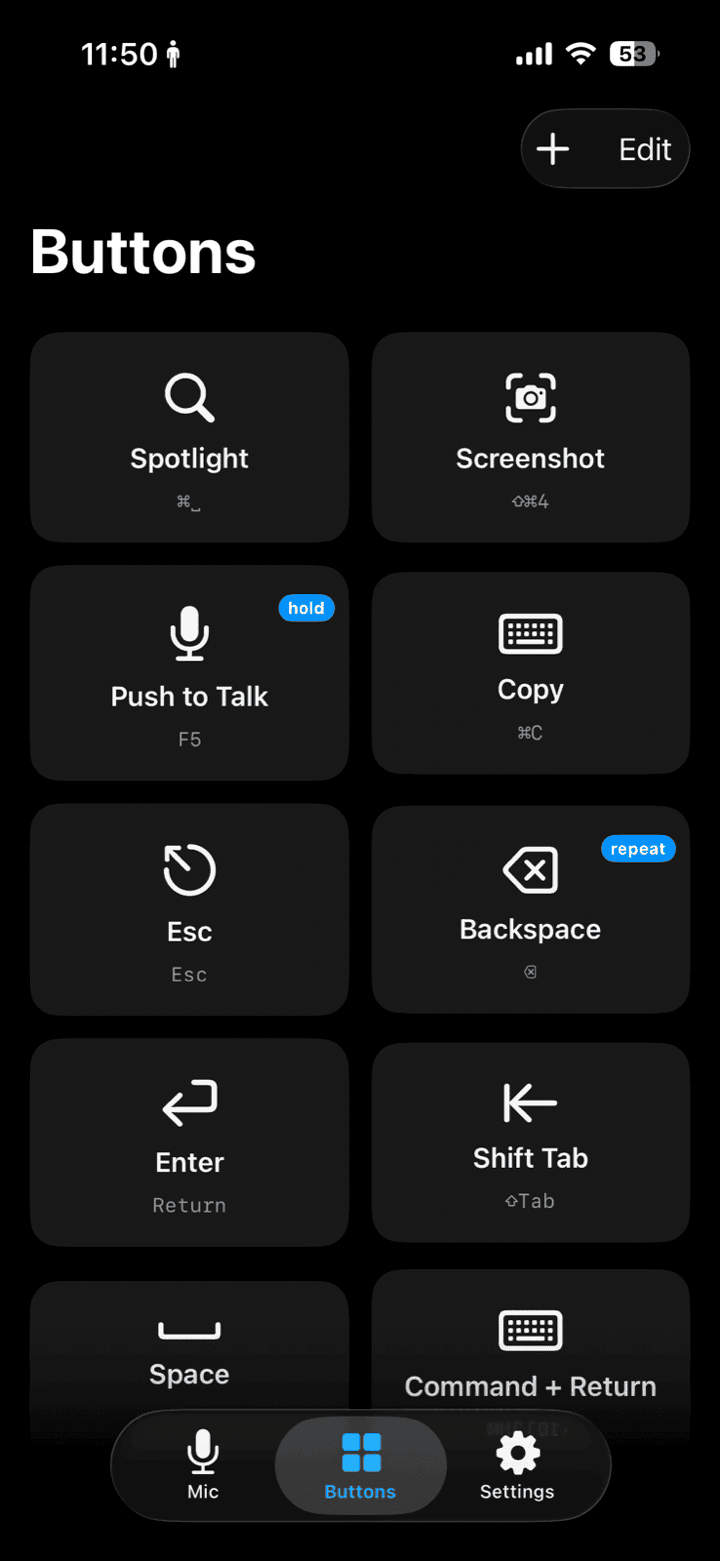
The iMic button remote can send a shortcut while you hold a button; configure that shortcut for your chosen dictation or voice input.
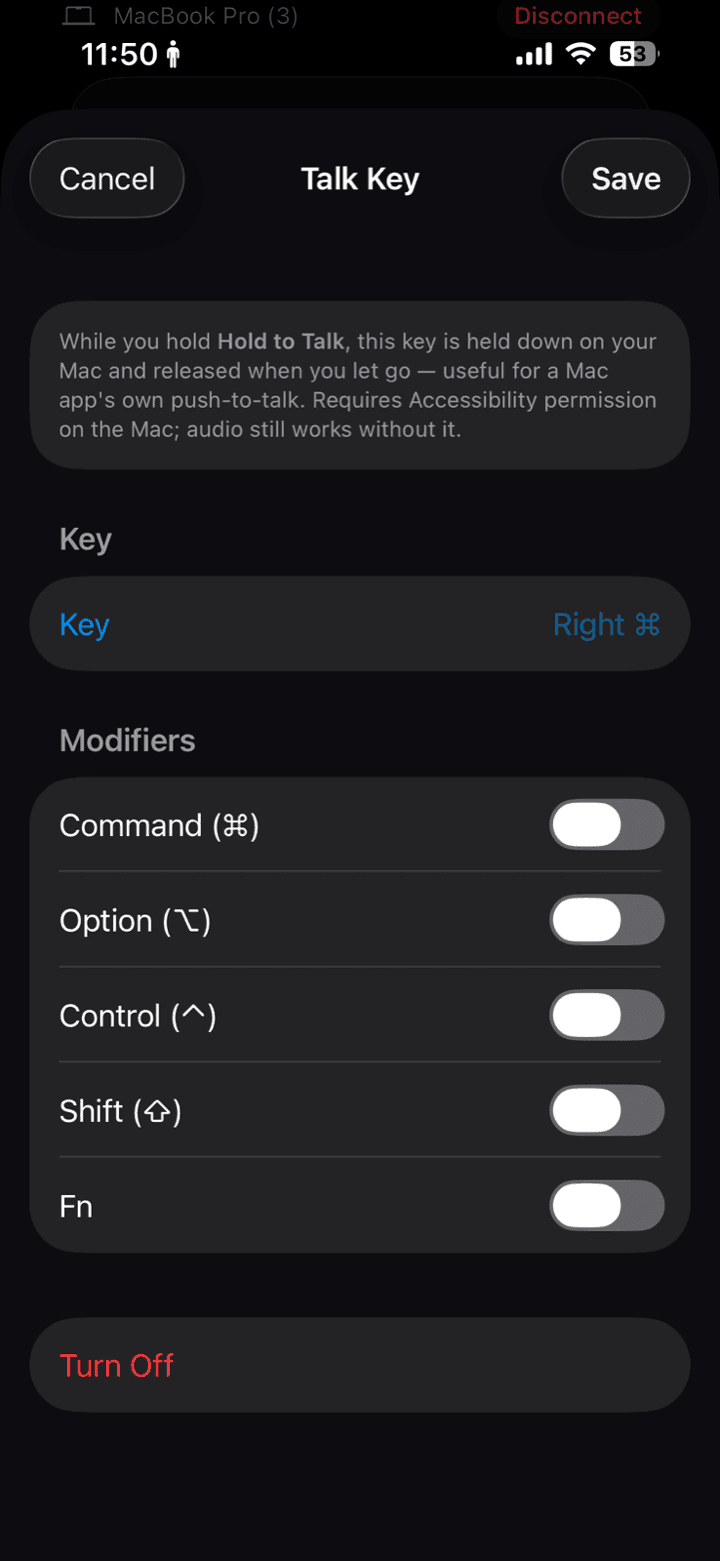
Use the Talk Key for a brief hold-to-talk action, then check the text in your coding app before sending it.
A phone at your mouth is the close-mic trick
Holding your phone near your mouth lets you speak more quietly while keeping the microphone close. It can be less conspicuous than leaning toward a laptop and projecting across the table. It does not make your voice private: nearby people can still hear you, and it does not cancel room noise.
If you want a hands-free voice workflow outside the office, see vibe coding hands-free. For the underlying shortcut pattern, read push-to-talk meetings.
Home, a closed room, and bad Wi-Fi
Use home or a closed room for the long, rambly prompts that make voice coding feel fluid. In an open office or café, keep requests short, avoid sensitive content, and switch to typing whenever you need privacy. If local Wi-Fi is unreliable, the Mac pairing guide for restrictive hotel and café networks has troubleshooting steps; you can also follow the iPhone-to-Mac setup guide.
For a quieter voice setup at your desk, learn more about iMic at Download. iMic is a virtual mic and shortcut remote over local Wi-Fi; it doesn't transcribe speech or provide magical noise cancellation.
Ready to try iMic?
Turn your iPhone into your Mac’s microphone and shortcut remote. $5.99/year with a 7-day free trial, or $9.99 for a lifetime license on two Macs.
Get iMic