Mac workflow
Use Your iPhone as a Dictation Microphone for Mac
November 3, 2026 · 7 min read · By Forthright Tech
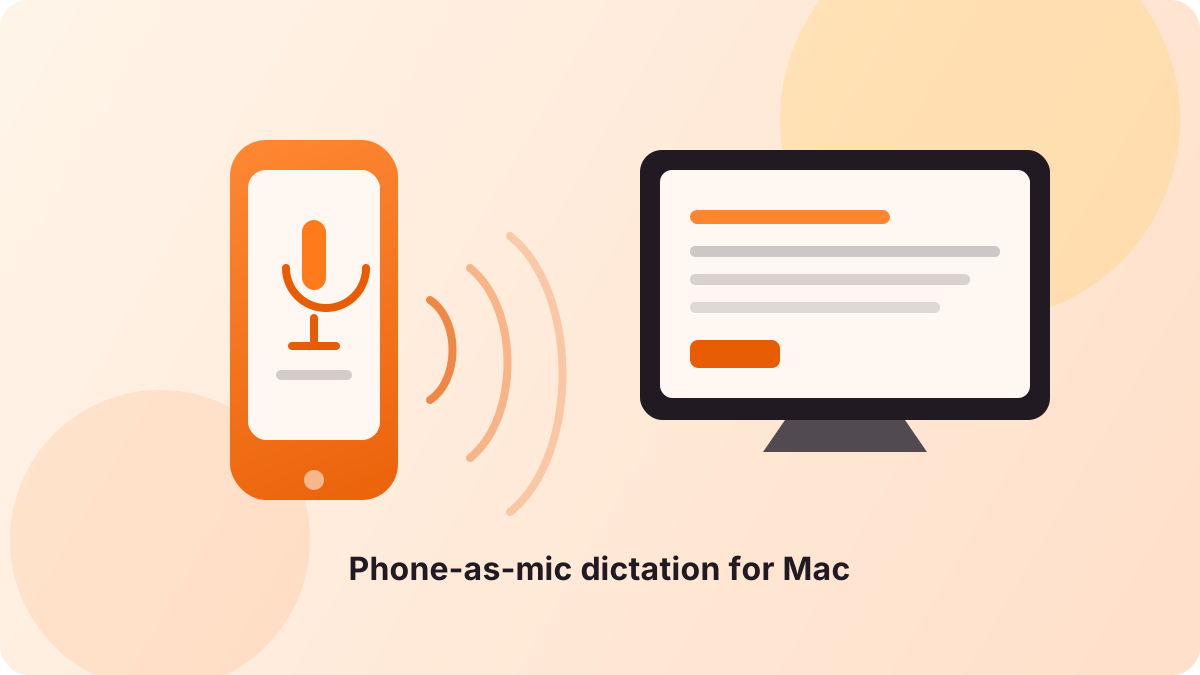
Skip the specialty USB dictation mic. Learn why “just use your phone” keeps coming up — and how iMic turns an iPhone into a selectable Mac microphone for voice typing.
If you have ever shopped for a “dictation microphone,” you have probably hit the same wall: specialty handheld USB mics often land near a couple hundred dollars, and it is not obvious whether that spend buys better words — or just a branded plastic shell for speech software you already use.
A r/Residency discussion about dictation microphone recommendations captures that shopping moment well. The original poster wanted something basic and reasonable, not a luxury mic. The replies — themes we paraphrase here rather than quote — kept circling a simpler idea: you may not need specialty hardware at all. Many people pointed toward phone-based dictation apps (especially institution-provided ones), cheap wired USB mics, or “any decent mic with a mute,” and several warned that Bluetooth setups can feel worse than a phone held close or a simple wired input.
That thread started with clinicians. The underlying problem is broader: you want clear speech into a computer without buying a dedicated dictation wand. This post takes that advice seriously for Mac users who dictate into Mac Dictation, Wispr Flow, Google Docs voice typing, or similar tools — without claiming medical compliance, EHR certification, or clinical endorsements.
The shopping problem: specialty mics vs. “good enough” audio
Dictation mic shopping usually mixes three different jobs:
- Capture — get a clear voice signal into the computer.
- Control — start/stop, push-to-talk, or buttons for templates and shortcuts.
- Recognition — the speech engine that turns audio into text.
Specialty dictation microphones often sell all three as one product. For many Mac writing workflows, only capture (and maybe a simple control) belongs in the microphone. Recognition lives in the app you already chose.
That is why “skip the expensive mic” resonates. If the software does the hard work, a closer microphone and a reliable input path matter more than a medical-looking form factor. Related reading: best microphone for Mac dictation and a broader gear comparison in unobtrusive mics for Wispr Flow and voice typing.
Why “just use your phone” keeps winning the thread
Across that Reddit thread and similar discussions, phone-as-mic advice keeps showing up for practical reasons:
- You already own it. No waiting for a $200 USB wand to ship.
- Proximity. Holding the phone near your mouth often beats a distant laptop mic — especially when the room is busy.
- Institutional apps (where available). In clinical settings, vendor phone apps can turn a smartphone into the mic for the hospital speech stack. That path is ecosystem-specific; it is not what iMic is, and we are not endorsing or substituting for those products.
Commenters also named real tradeoffs of phone-based dictation: one hand holding the phone, fewer chances to play music through the same device, and frustration when Bluetooth compression or flaky wireless links hurt consistency. Wired USB mics and simple desktop mics still get recommended when you want hands-free desk work and a cable you can forget about.
The honest takeaway is not “phones always beat hardware.” It is: try the microphone you already carry before you buy another one.
The Mac gap: dictation apps need a selectable system mic
Here is where Mac users hit a different wall than the residency thread’s default stack.
Many “phone as dictation mic” solutions are tied to a specific speech product or EMR workflow. They stream into that product’s world. They do not necessarily appear as a normal macOS microphone that any app can select.
Mac voice typing usually works the other way around:
- You pick a dictation or AI writing tool (Mac Dictation, Wispr Flow, a browser voice-typing feature, and so on).
- That tool listens to a system audio input.
- Recognition happens inside that tool (on-device, cloud, or hybrid — depending on the tool’s own design).
So if you want “phone quality close to the mouth” on a Mac, you need the phone’s audio to show up as something like Sound Settings → Input → [your mic]. Continuity Microphone can help in Apple’s own path; third-party dictation apps still often want a clear, selectable input you can verify. For a product overview of how iMic approaches this, see What is an iMic?.
How iMic fills that gap
iMic is software from Forthright Tech LLC that turns your iPhone into a wireless microphone for your Mac — and optionally a programmable shortcut remote. It is not a transcription engine and not a clinical speech product.
What it does, per the product design:
- iMic for iPhone captures microphone audio and can fire customizable Mac keyboard shortcuts from on-screen buttons.
- iMic for Mac is a menu bar app that receives the stream and exposes a virtual microphone named iMic to other Mac apps.
- Audio travels over local Wi‑Fi or a peer-to-peer link. There is no cloud relay for that audio path, and audio is not stored by default.
- Latency target is under 100 ms end to end on a typical local network (typical budget roughly 45–70 ms).
- Streaming can continue with the iPhone screen locked (background audio).
- After a one-time 6-digit pairing, trusted devices reconnect without re-entering a code.
The dictation path looks like this:
Your voice → iPhone (iMic) → local connection → “iMic” virtual mic on Mac → your dictation app → text.
You still choose the recognition software. iMic only supplies the microphone (and optional shortcuts useful for push-to-talk or starting Mac Dictation). Hold-to-talk behavior depends on how your dictation app responds to the shortcut you map — test press/release before you rely on it.
A practical setup for voice typing
- Install iMic for Mac and iMic for iPhone (macOS 14+, iOS 17+, preferably the same Wi‑Fi).
- Complete the Mac app’s one-time virtual microphone install.
- Pair with the 6-digit code; allow Local Network on iPhone when prompted.
- In your dictation app (or macOS input settings it follows), select iMic.
- Dictate a short real paragraph, stop, and check both the recording quality and the transcript.
Step-by-step detail: set up iPhone and Mac with iMic. If devices cannot discover each other on hotel or corporate Wi‑Fi, see restrictive network troubleshooting.
For AI voice-typing tool choices on Mac, see AI dictation software for Mac. For browser documents, see Google Docs voice typing on Mac.
Optional: phone buttons for push-to-talk / dictation shortcuts
If you want the phone to start or stop dictation without diving for a keyboard chord, iMic’s shortcut remote can fire Mac shortcuts you configure (dictation, push-to-talk, Raycast, Spotlight, and similar). That path needs macOS Accessibility permission because it synthesizes keystrokes. The virtual microphone works without Accessibility — grant it only if you want the remote.
That addresses a common complaint from phone-as-mic workflows: the mic is useful, but control is awkward. A button under your thumb is often enough.
When a dedicated mic is still better
Be honest with the use case. Prefer a dedicated USB mic, headset, or lav when:
- You want hands completely free at a fixed desk and a cable is fine.
- Your phone needs to stay free for calls, 2FA, or music while you dictate.
- You need a permanently docked mic at a shared workstation.
- Local Wi‑Fi between phone and Mac is unreliable where you work.
- You already have a mic that produces clear transcripts and zero drama.
iMic does not claim better recognition than every USB headset, nor does it make a noisy room quiet. Placement, room tone, and the dictation engine still dominate accuracy. We also do not claim HIPAA eligibility, EMR certification, or suitability as a drop-in replacement for hospital-issued dictation stacks. If your workplace requires a specific vendor mic or app, follow that policy.
Start with the mic in your pocket
The Reddit shopping thread’s useful instinct still holds outside the hospital: specialty dictation hardware is optional for many people. On a Mac, the missing piece is often not “a better capsule” — it is a phone mic that apps can select as a normal system input, with local transport and optional shortcut control.
If that matches how you write, get iMic, pair once, select iMic in your dictation app, and try one real draft. Let the transcript — not the product page — decide whether you still want a dedicated mic.
Ready to try iMic?
Turn your iPhone into your Mac’s microphone and shortcut remote. $5.99/year with a 7-day free trial, or $9.99 for a lifetime license on two Macs.
Get iMic