Mac workflow
Voice typing in Google Docs on Mac: which microphone to use
October 27, 2026 · 7 min read · By Forthright Tech
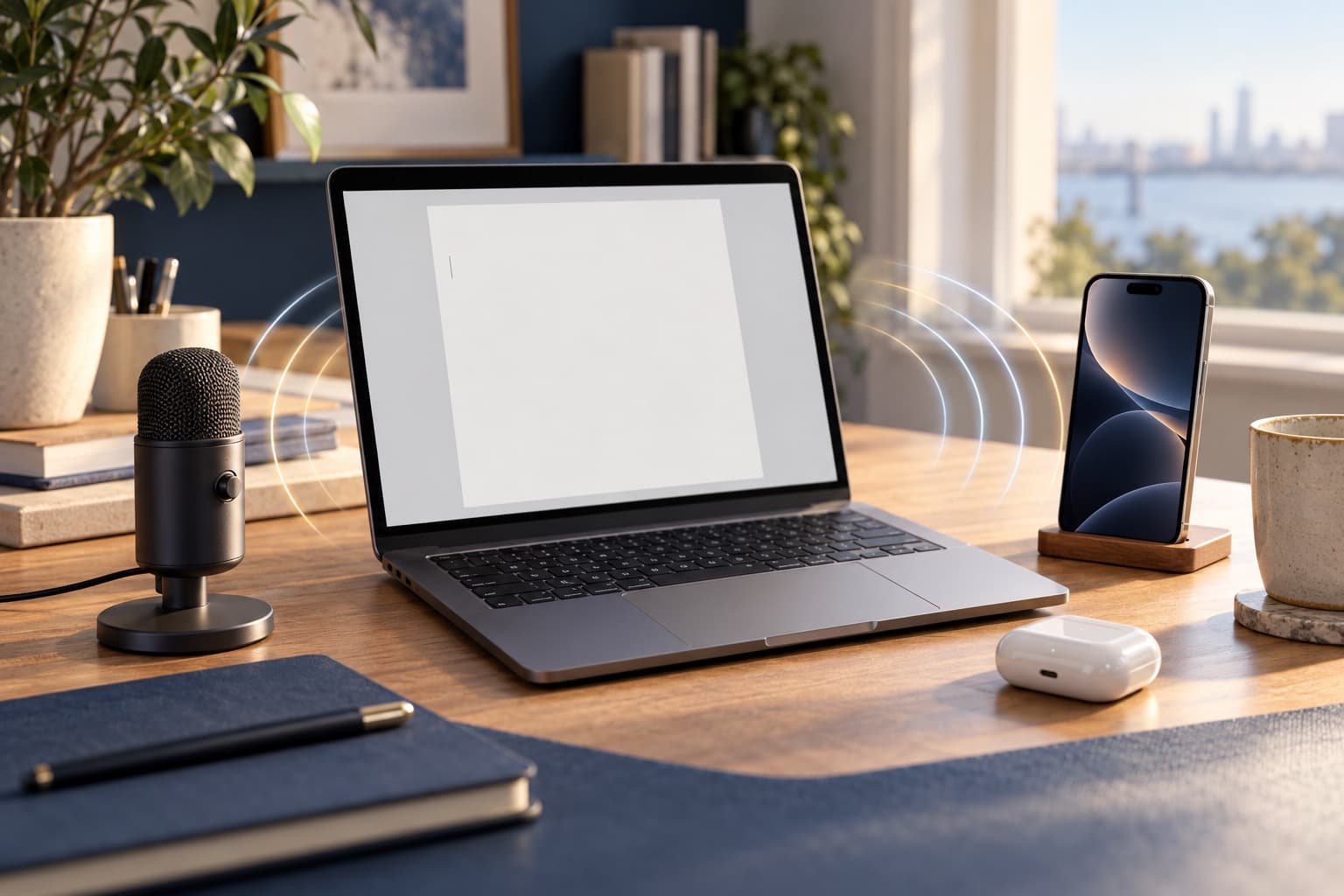
Set up Google Docs voice typing on a Mac and choose between the laptop mic, AirPods, a USB microphone, or an iPhone through iMic.
Google Docs voice typing turns your speech into text in a document, while the microphone you choose determines what audio your Mac sends to the browser. Start with the Mac’s built-in mic; switch to AirPods or a USB mic if they suit your room, or use an iPhone through iMic when you want to move around. iMic supplies microphone audio only—Google Docs handles recognition, typing, and punctuation.
Turn it on
Open a document in Google Docs and look in the Tools menu for Voice typing. Google’s current help lists Chrome, Microsoft Edge, and Safari on desktop as supported browsers; the exact menu can depend on the browser version and account, so check the menu in the document you are using. Choose a language, click the microphone in the floating control, and speak. Click it again to stop. If you do not see Voice typing, update or switch browsers and check Google’s current voice typing instructions.
The browser handles the speech-to-text service for Docs voice typing, then sends the recognized text to Docs. That is why both the microphone selected in macOS and the browser’s access to it matter. You can see the input route on your Mac in System Settings → Sound → Input.
Laptop mic, AirPods, USB mic, or iPhone via iMic
Laptop microphone: the quickest baseline if you sit near your Mac in a quiet room. Try a few sentences at your normal distance. If the result is quiet or picks up too much room sound, check the input level and move closer before changing tools.
AirPods: convenient if you already wear them, especially when you turn away from the screen. Bluetooth headset input can sound different from the Mac’s built-in mic, and the selected input may change when AirPods connect. Confirm the input in Sound settings and test a paragraph in Docs.
USB microphone: a good desk option when you want a dedicated mic. Select its name in macOS Sound Input; then confirm the browser is allowed to use the microphone. Placement matters: a mic close to your mouth usually hears less room noise than one across the desk.
iPhone through iMic: useful if you want to pace or hold the phone closer while speaking. With iMic connected, macOS exposes iMic as an input device; choose it in Sound Input and leave Google Docs voice typing active in your browser. The phone sends microphone audio to the Mac; Docs still performs speech recognition and inserts the words. iMic does not type, punctuate, or transcribe. See how to set up an iPhone as a Mac microphone.
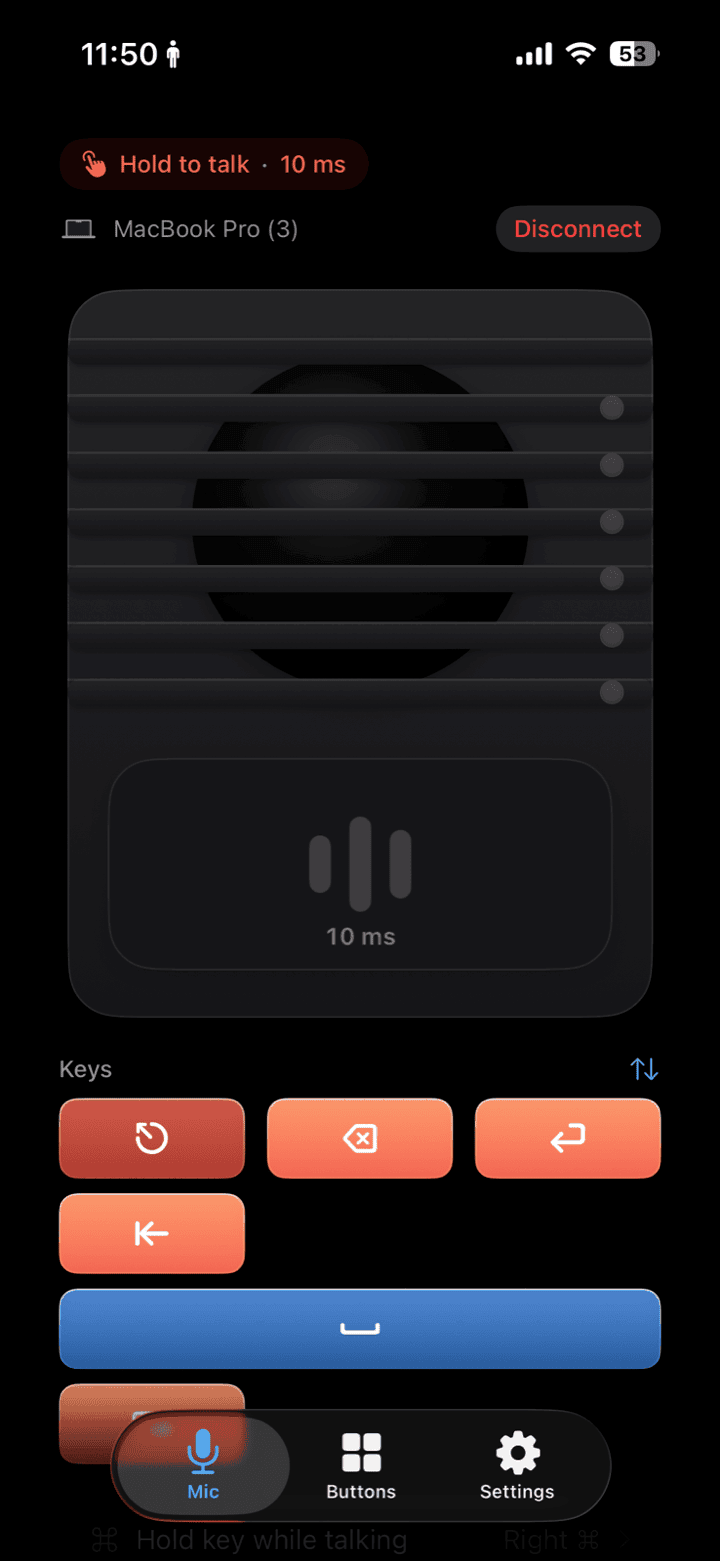
In iMic, the iPhone acts as the audio source. Choose the iMic input on the Mac for an app such as your browser.
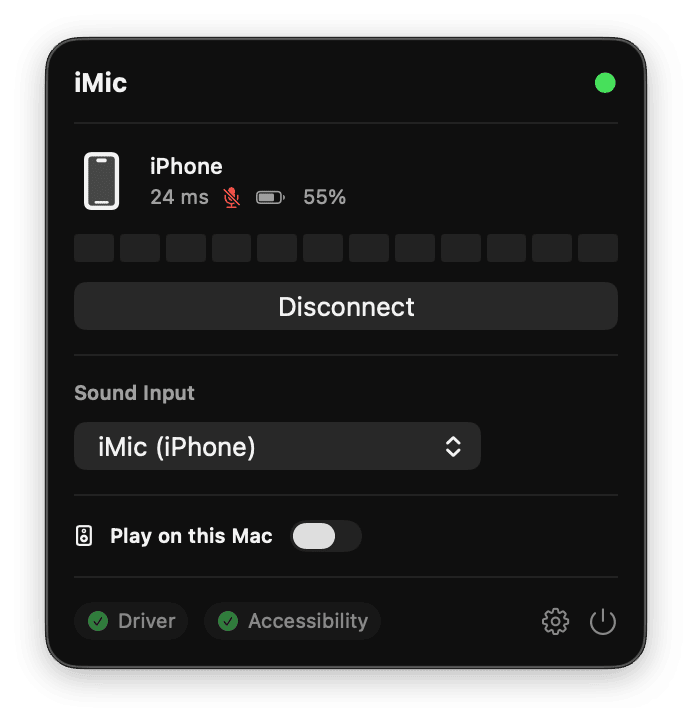
The Mac menu bar app helps you check the iMic connection; choose the input separately in macOS Sound settings.
For a closer look at microphone choices for dictation, see Mac dictation microphones and Wispr Flow. If you use a desktop Mac, the Mac mini has no built-in microphone, so plan on an external input.
“We’re having trouble hearing you”
If Docs shows “We’re having trouble hearing you,” work through the audio path one piece at a time:
- In System Settings → Sound → Input, select the mic you intend to use and check that its input meter responds while you speak. If you use iMic, confirm it is connected and selected here.
- In the browser, allow microphone access for Google Docs. In Chrome or Edge, use the site controls beside the address bar to review the microphone permission; in Safari, review website microphone access in Safari settings. Reload Docs after changing permission.
- Close or pause other apps that may be using the microphone, such as a meeting or recording app, then try again. Also check that the mic is not muted and its input level is not set too low.
- Stop and restart Voice typing after changing the input. Speak a short test sentence before continuing.
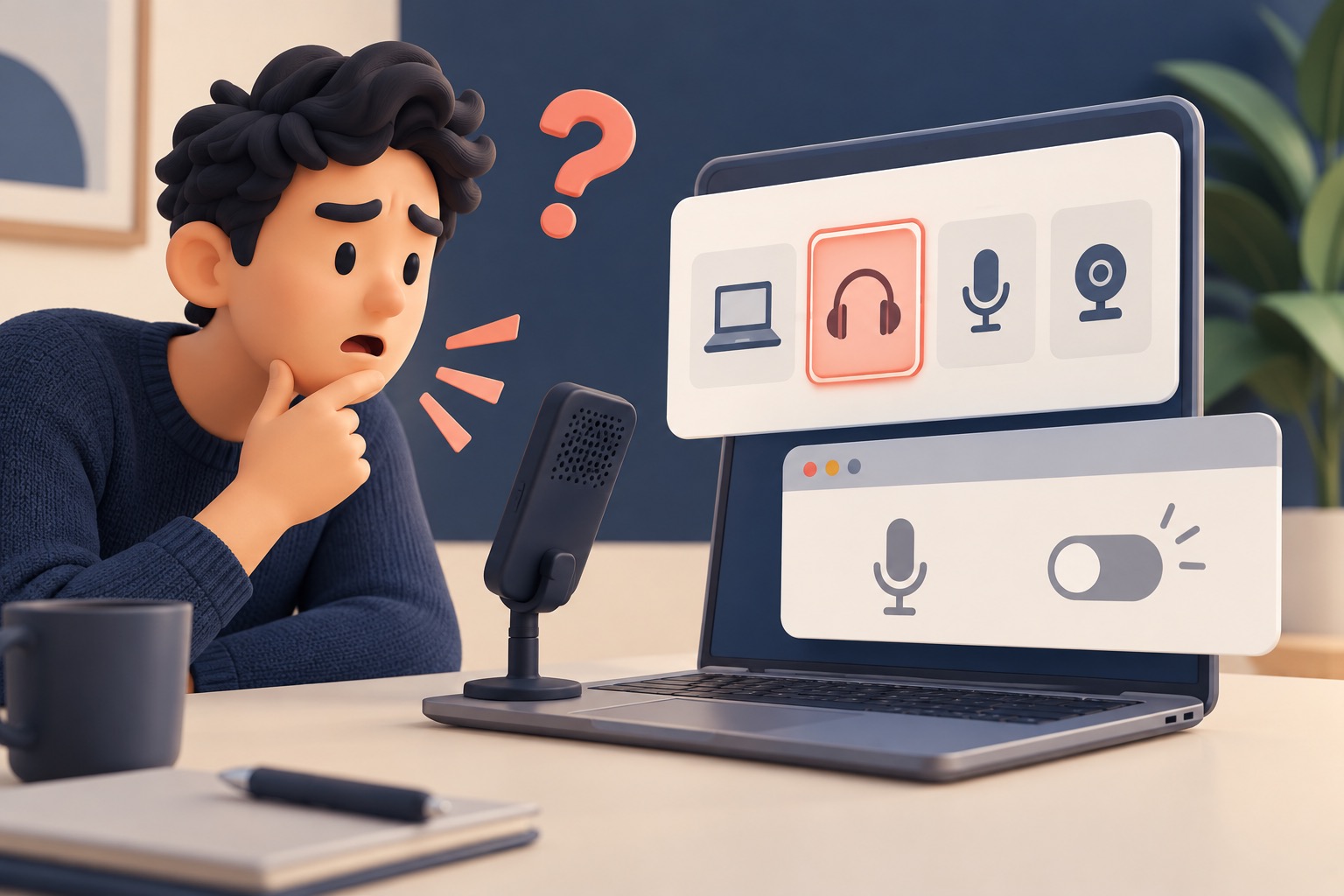
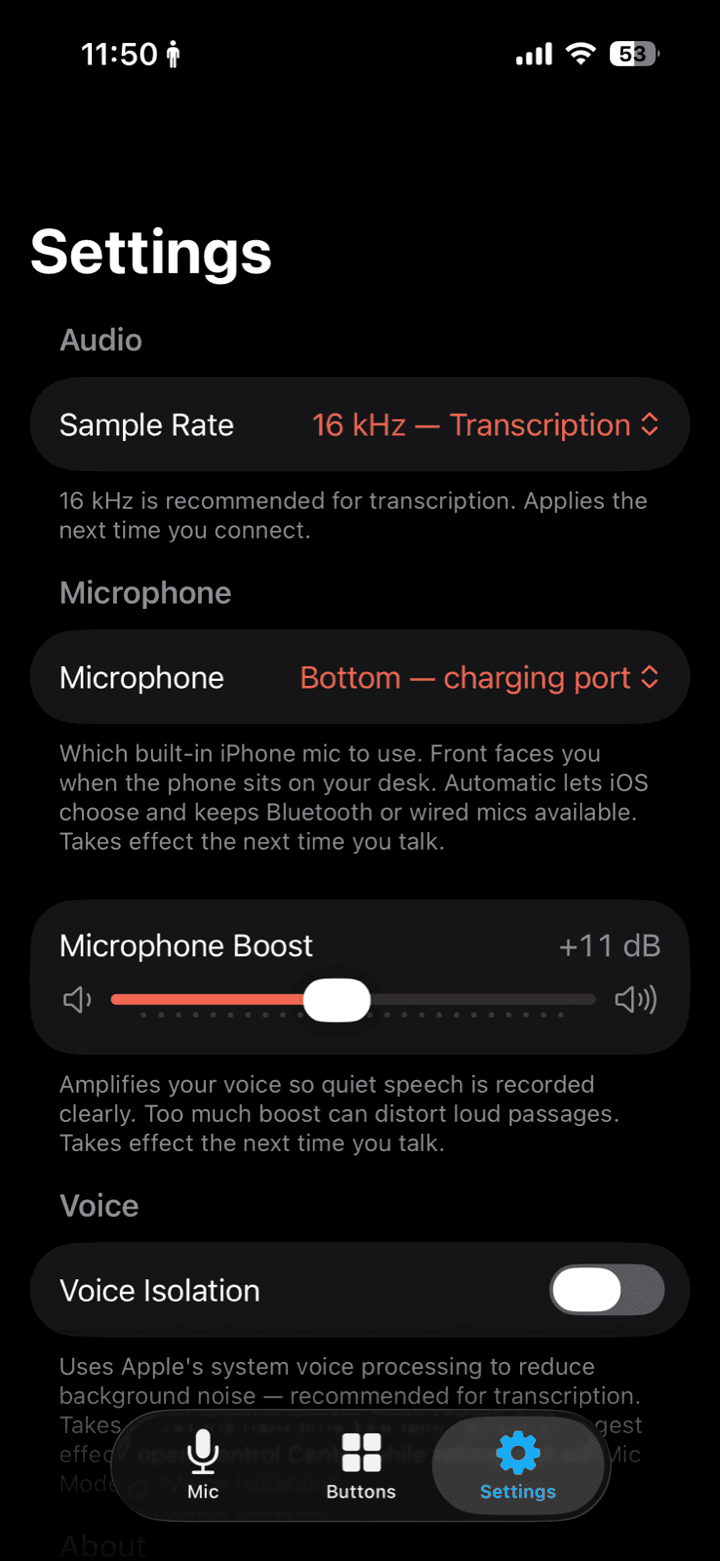
A screenshot of the Sound Input list and iMic’s setup screens can help you compare the selectable route with the setup you expect. For the iPhone side, see the iMic microphone screenshot and iPhone settings screenshot. If macOS itself does not show the microphone, solve that connection or device issue first; a Docs permission toggle cannot make an unavailable input appear.
Punctuation, voice commands, and fixing a word without stopping
Speak naturally and include punctuation commands where supported, such as “period,” “comma,” or “new paragraph.” Recognition and available commands vary by language and browser. Check the Google Docs voice command list for the language you use. For a small correction, pause voice typing, click the word in the document, edit it, then restart the microphone. That is often faster than trying to dictate a complicated revision command.
Treat the result as a first draft. Review names, numbers, punctuation, and words that sound alike, especially before sharing the document. A closer, stable microphone can improve what reaches the browser, but it cannot guarantee perfect recognition.
Docs voice typing and Chrome Talk to Type are different tools
Google Docs voice typing is a command inside Docs. You start it from the document’s Tools menu and the browser handles the speech-to-text service for the Docs feature. It is useful when you are writing in a Google document.
Chrome Talk to Type is a separate Chrome feature for entering or editing text in web text boxes. Google says Talk to Type collects the voice recording, typed words, and page details to provide its feature; its current help says text changes are not yet available in Google Workspace apps. Review Chrome’s Talk to Type help and data details before enabling it. Do not confuse it with the Docs Voice typing control.
If you want voice input inside Docs, start with Docs Voice typing and the Mac microphone that is easiest to test. Use the laptop mic for a quick baseline, then try a headset, USB mic, or iPhone with iMic if your speaking distance or room calls for it. The mic delivers audio; Google Docs does the transcription.
For using an iPhone mic in other hands-free workflows, see voice vibe coding in an open office if you want an example of voice as an input method outside document dictation.
Ready to try iMic?
Turn your iPhone into your Mac’s microphone and shortcut remote. $5.99/year with a 7-day free trial, or $9.99 for a lifetime license on two Macs.
Get iMic